
A) WHAT CAN THIS SYSTEM DO?
Passionate about gardening but also procrastinating? Love plants but are aware that we live in the era of microchips, space exploration and selfies? Say no more, with this system, the tedious task of filling buckets with water or running hoses through your yard will be a thing of the past. Enter "The Gardenator". A space-age system straight out of Isaac Asimov's novels. No, not really, but what this will do is help you water your beloved plants and tell you when to stop. Or you can tell it how much moisture you want your plants to have and it will water them for you. That's right. Forget faucets (leaky most of them), mud (bleah), dirty fingernails (awkwaaard) and pesky bees. Watch your garden grow at the touch of a button.
B)THAT'S ALL FINE AND DANDY, BUT HOW?
*Note: skip to step C) if you already know about Processing and have it installed
Before getting started, or better yet, before you get started not doing anything, you will need to download and install Processing (free software), you can find it at: https://www.processing.org/download/ .
As per the developers of the application:
"Processing is a programming language, development environment, and online community. Since 2001, Processing has promoted software literacy within the visual arts and visual literacy within technology"
You need to remember that Processing is a very versatile platform, as is capable of (just to name a few):
- » Free to download and open source
- » Interactive programs with 2D, 3D or PDF output
- » OpenGL integration for accelerated 3D
- » For GNU/Linux, Mac OS X, and Windows
- » Over 100 libraries extend the core software
- » Well documented, with many books available
Installing Processing is a breeze, just download the package and double click the icon. No special instructions for installing, just click through it. After install completed, double click the icon(figure 1):
Figure 1
You'll get the following window (figure 2), very similar to that used by the Arduino IDE.
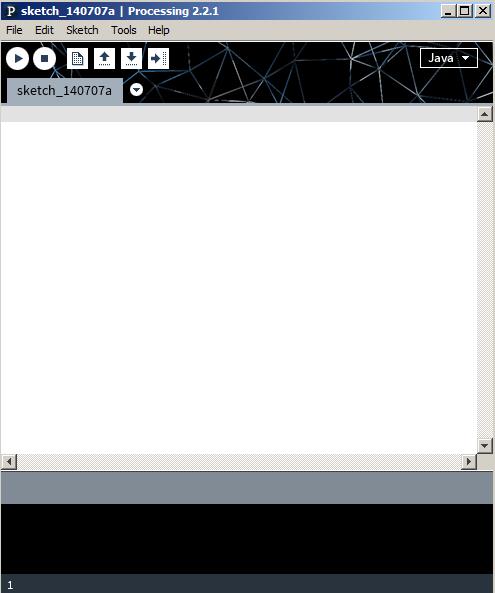
Figure 2
Now, to check out some cool examples of Processing applications, just go to File > Examples, you should get the following window (figure 3):
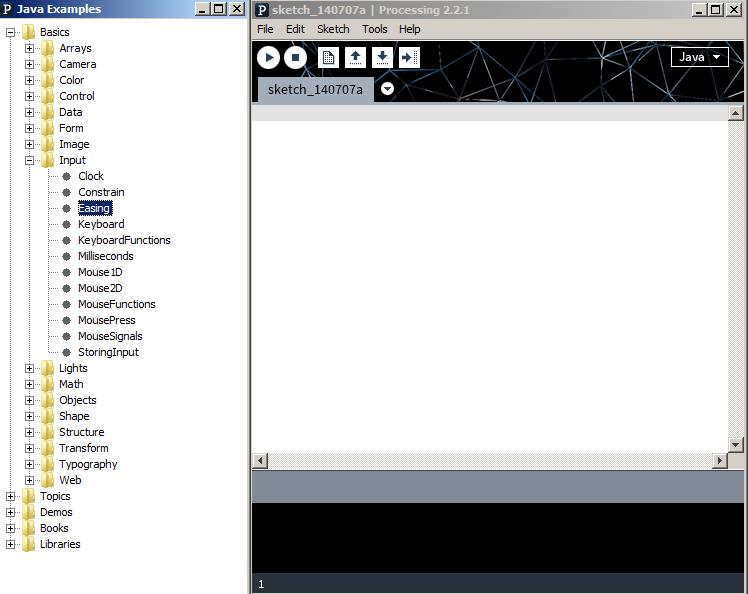
Figure 3
You'll notice that on the left hand side you have a pretty large list of examples. Just pick whichever one you like, double click it, read the description and then just click on RUN (figure 4). This will give you a pretty good idea of what Processing is capable of.
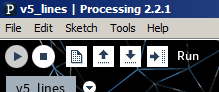
Figure 4
C)RUNNING THE PROCESSING APPLICATION
Easy-peasy. Download the Processing app from here. You'll need WinRAR (free, available here) to unzip the file. After extracting the files, you should get a folder with the below structure (figure 5).
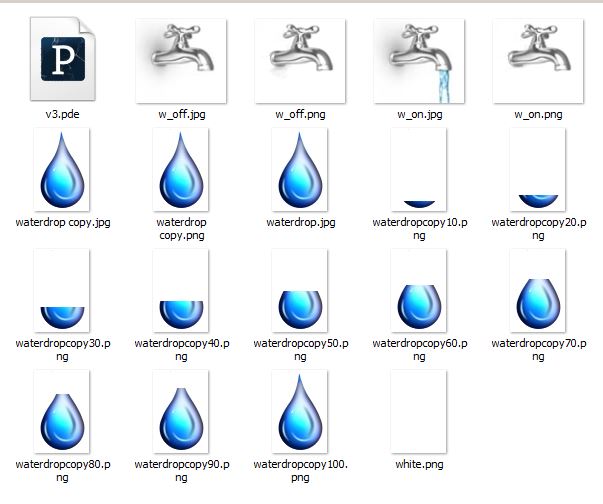 Figure 5
Double click on v3.pde, and once the file is open, click on run (figure 4).
The application is shown in figure 6. To start watering a section, click on a faucet. Humidity is shown as both water drops, filling up as humidity rises and procentual values.
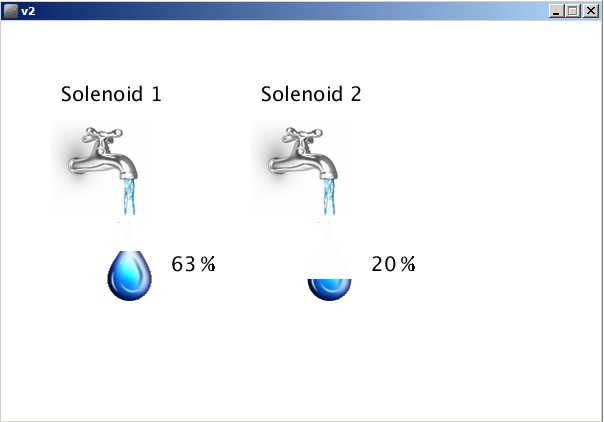
Figure 6